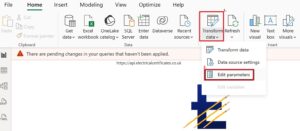
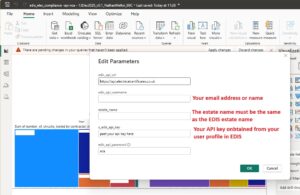
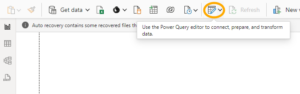
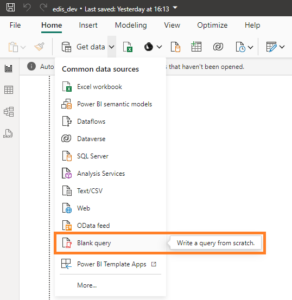
The EDIS SYSTEM provides an API that allows data to be exported into SharePoint or PowerBI reports
edis_get_actions_required PowerQuery Script – The script below will return the actions required in a building, remember to change the username and password
let
// Set the base URL
baseUrl = “https://api.electricalcertificates.co.uk”,
// Define API URLs as variables
loginUrl = baseUrl & “/login”,
actionRequiredUrl = baseUrl & “/actionrequired”,
// First API Call: Get Login Token
jsonPayload = Json.FromValue(
[
user_email = “yo**@***il.com“,
user_password = “your_edis_password”
]
),
response = Web.Contents(
loginUrl, // Use the login URL variable
[
Headers = [
#”Content-Type” = “application/json”
],
Content = jsonPayload
]
),
jsonResponse = Json.Document(response),
edis_login_token = if Record.HasFields(jsonResponse, “token”)
then Record.Field(jsonResponse, “token”)
else error “Token not found in response.”,
// Second API Call: Use Token
token_value = edis_login_token,
jsonPayload2 = Json.FromValue(
[
token = token_value,
filters = []
]
),
response2 = Web.Contents(
actionRequiredUrl, // Use the action required URL variable
[
Headers = [
#”Content-Type” = “application/json”
],
Content = jsonPayload2
]
),
jsonResponse2 = Json.Document(response2),
// Extract the “action_required_items” list
actionRequiredItems = if Record.HasFields(jsonResponse2, “action_required_items”)
then jsonResponse2[action_required_items]
else error “Field ‘action_required_items’ not found in response.”,
// Convert the list to a table
actionItemsTable = Table.FromList(actionRequiredItems, Splitter.SplitByNothing(), {“Record”}),
// Expand the nested records into columns
expandedTable = Table.ExpandRecordColumn(actionItemsTable, “Record”,
{“estate_name”, “building_name”, “observation_type”, “cert_number”, “cert_status”,
“item_no”, “board_circuit”, “observation_remedial_group”, “obs_org_group”,
“item_description”, “category_code”, “action_required”, “item_status”,
“comments”, “external_system_work_order_group”,
“external_system_work_order_reference”, “assigned_to”, “assigned_to_email”, “images”})
in
expandedTabl